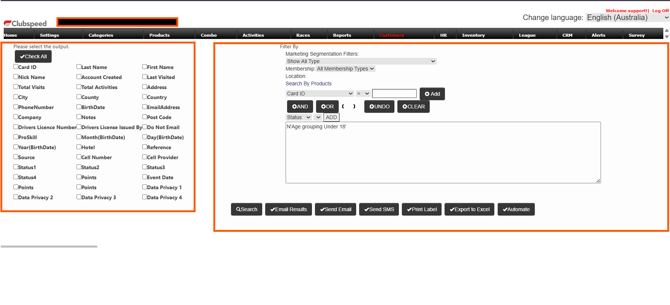
Step 1: Log in to your SP_admin portal and navigate to the Customers tab. On the left side of the screen, you can view customer information such as their email address, physical address, name, and phone number.
On the right side of the screen, you can select and apply filters to target specific customers. For example, you can filter customers who have an active membership, are celebrating a birthday, or have not visited the venue in the last two months.
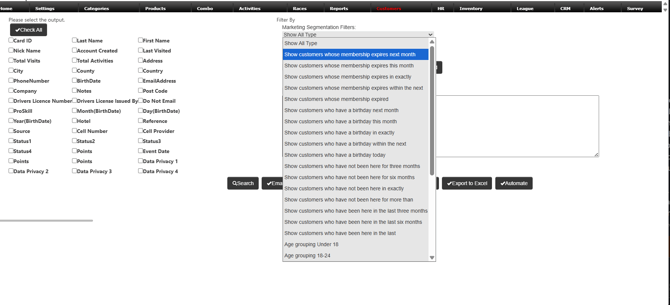
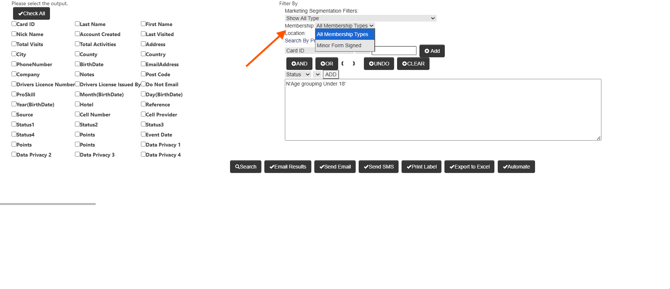
If you click on Marketing Segmentation Filter, you will see all the available filtering options within ClubSpeed, allowing you to select exactly which customers you would like to include in your marketing email campaign.
If you select Membership, this filter will target customers with an active membership. If your venue does not use memberships, please leave this option set to All Memberships.
If you select Search by Products, this filter allows you to narrow down customers based on criteria such as specific products, total visits, birthdate, or other related attributes.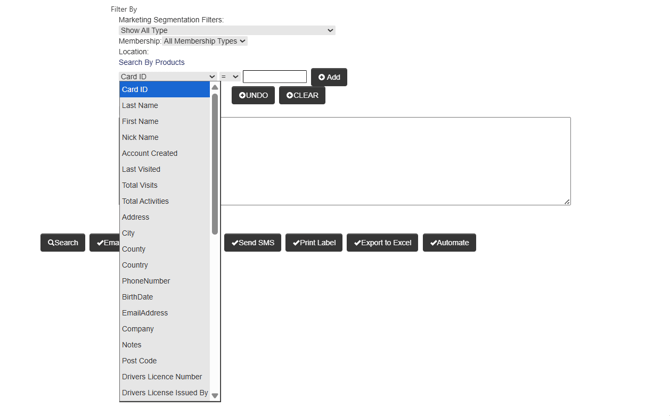
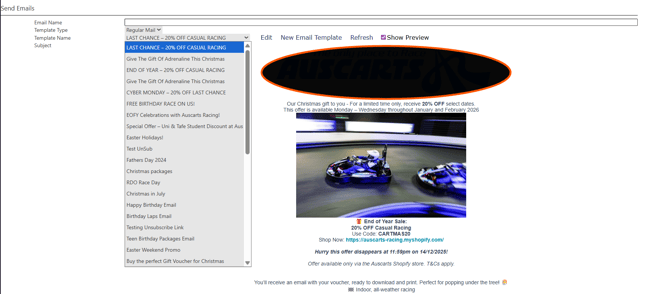
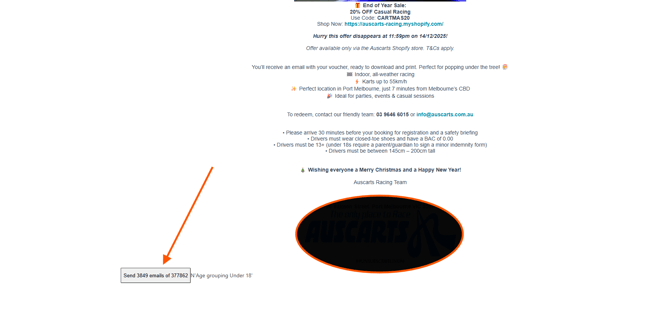
Once you have finished filtering and selecting the desired customers, click on Send Email.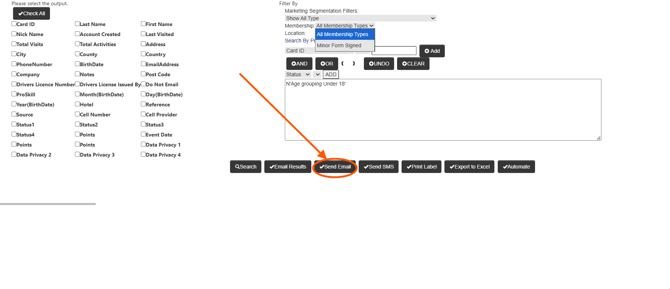
This will take you to the list of marketing templates you have created. Select the template you would like to use, enter the email name, scroll down, and click Send. This will complete your marketing campaign.
To create a new email template, click "New Email Template". A blank template canvas will appear, which you can then customize to meet your requirements.