
Before You Begin
Ensure you have the following information before starting the process:
- The exact new names of the rooms.
- A clear list of which existing rooms need to be updated.
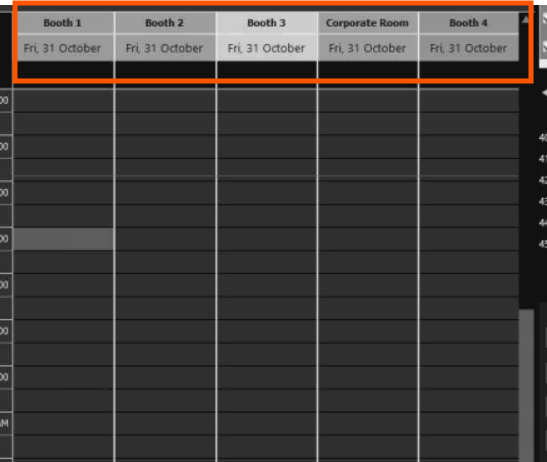
Procedure
- Access the Customer’s Server
Connect to the customer’s server where the database is hosted. - Open SQL Server Management Studio (SSMS)
Once connected, open SQL and expand the ClubspeedV8 database. - Locate the Correct Table
In the database, expand the Tables section and find the table named dbo.eventreservationtypes. - Edit the Table
Right-click on dbo.eventreservationtypes and select Edit Top 200 Rows (or Edit Top 2000 Rows, depending on your setup). - Find and Rename the Rooms
- In the Description column, locate the names of the current rooms.
- Click on the room name you want to change and update it to the new name.
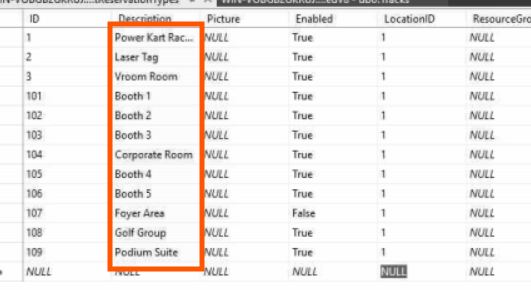
- In the Description column, locate the names of the current rooms.
- Save the Changes
Once all desired names have been updated, close the editor. SQL automatically saves these edits when you move to another row or close the window.
Note:
Always confirm the updated names with the customer after making the changes to ensure accuracy and alignment with their requirements.