
If you are using ClubSpeed through Remote Desktop (RDP) and your printer is connected to your local POS computer, you may notice that the printer does not appear inside ClubSpeed for things like:
- Race Results
- Waivers
This usually happens because the printer is connected to the local computer, but it has not been redirected into the Remote Desktop session.
This guide will walk you through how to allow your local printer to be available inside your RDP session.
Step 1: Close Out of Remote Desktop
Before making changes, completely close your current Remote Desktop session.
If ClubSpeed is currently open in RDP:
- Save your work if needed
- Sign out or close the Remote Desktop window
Step 2: Open Remote Desktop Connection Settings
On the local computer:
- Click the Windows Start Menu
- Search for Remote Desktop Connection
- Open Remote Desktop Connection
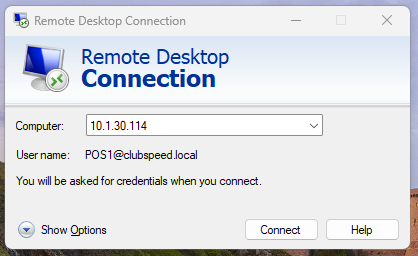
You may see a small login window appear.
Step 3: Show More Options
If only a small connection window appears:
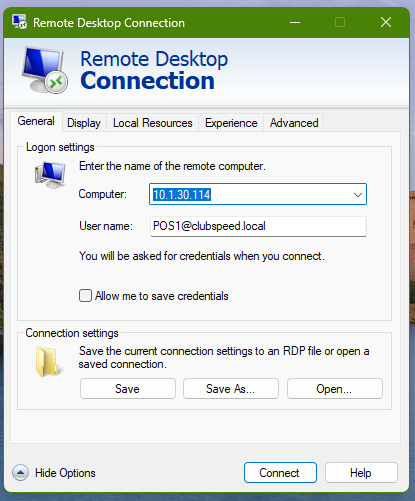
- Click Show Options
This will expand the full RDP settings menu.
Step 4: Enable Printer Redirection
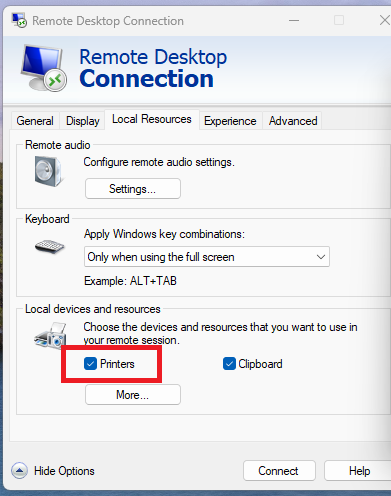
- Click the Local Resources tab
- Under Local devices and resources
- Make sure Printers is checked
It should look something like this:
- Printers
This setting allows your local printer to be passed into the remote session.
Step 5: (Recommended) Check More Local Devices if Needed
Still under Local Resources:
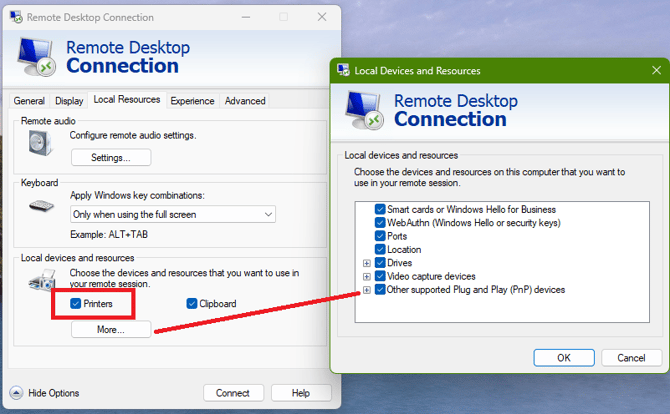
- Click More...
This section may show additional devices that can be redirected.
You can usually leave most of these alone unless specifically needed, but if your printer is part of a USB setup, this can sometimes help depending on the environment.
Once reviewed:
- Click OK
Step 6: Reconnect to the Remote Desktop Session
- Go back to the General tab
- Launch your Remote Desktop session as normal
- Log in to the remote machine
Once connected, Windows may take a few moments to redirect the printer.
Step 7: Verify the Printer Appears Inside the Remote Session
Once inside the RDP session:
- Open any print preview option to specify your local printer
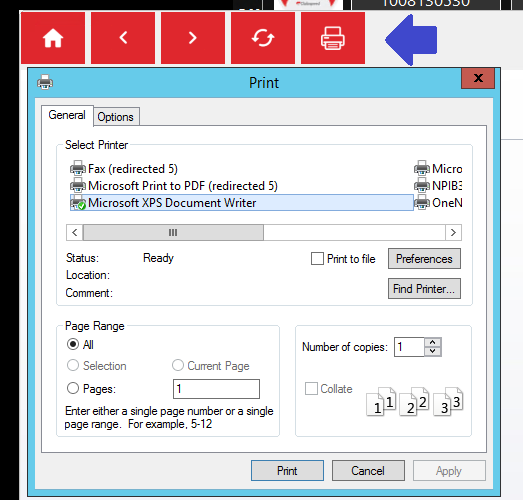
Look for your printer and then click print.
It may appear with a name similar to:
- Printer Name (redirected 1)
- Printer Name on CLIENTNAME
- HP LaserJet (redirected)
This is normal and indicates the printer has been redirected successfully.
If the Printer Still Does Not Show in ClubSpeed
If the printer appears in the remote session but still does not show inside ClubSpeed, try the following:
A. Restart the RDP Session
Sign out of Remote Desktop fully and reconnect again.
Sometimes printer redirection does not complete correctly on the first launch.
B. Confirm the Printer Is Installed Properly on the Local PC
On the local POS computer, verify that:
- the printer is listed in Windows Printers
- it can print a test page
- it is not listed as Offline
C. Make Sure the Correct Printer Driver Is Installed
In some environments, redirected printers may fail to appear properly if the printer driver is missing or unsupported.
If needed, your local IT provider may need to confirm:
- the correct printer driver is installed on the local machine
- the remote environment supports redirected printers
Need Additional Help?
If you continue having trouble after following these steps, please contact Support.
There may be some server rules enabled that prevents this function.
Submit a ticket requesting to enable printer redirection for RDP and support will assist there.