
Smart Tips to Keep Your POS Secure
Here are six quick actions you can take today to boost your system’s security:
- Use strong admin passcodes and change them regularly.
- Limit access to trusted staff and assign roles carefully.
- Treat your Clover device like cash – never leave it unattended.
- Review transaction activity often to catch unusual behavior early.
- Enable two-factor authentication on your Clover dashboard for an extra layer of protection.
- Enable Secure Payment Flow mode to lock the Clover device into the payment screen, preventing card holders from accessing sensitive functions like manual card entry, refunds, or merchant-only settings.
You’re in Control
Customizing Refund Permissions
Clover gives you full control over who can process refunds. You are able to:
- Disable refunds entirely for certain roles.
- Set refund limits to prevent large unauthorized transactions.
- Assign employee-level entitlements – so only trusted staff have access.
Clover employee permissions
Tracking each transaction to a particular employee increases accountability. Additionally, establishing clear policies and creating consequences for violations can improve security beyond the digital space.
- Admin: Has the highest level of access.
- Manager: Has significant access, but typically less than an Admin.
- Employee: Has the most limited access, focused on daily operations.
- Custom roles: You can create additional roles with specific permissions to further control access.
Performing routine audits can assist in flagging irregular transactions or large refund amounts. We highly recommend this in order to prevent fraud and theft.
Other than refunds, there are other permissions you can customize access for. By navigating to “Settings” > search for “Employee Permissions”, you can view a variety of sections.
Clover Log-In
1. Log in with your user and password.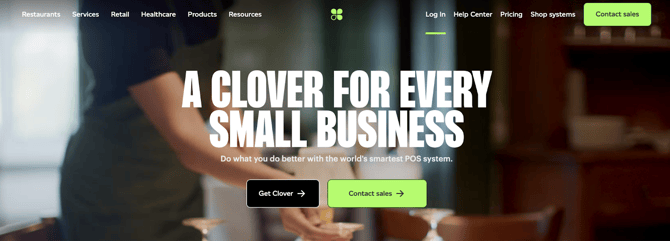
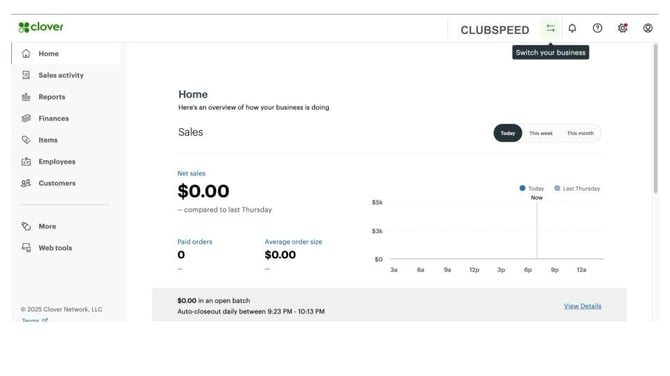
2. After navigating to the home page, you may have to click on the upper right hand corner, “Switch your business” to select a particular location.
Clover Manual Refund Guide (via Clover Website)
The following steps will assist you in setting specific refund permissions for your Admin, Managers, and Employees via the Clover Website. If you are unable to access this option, there are additional instructions on how to adjust these settings via your Clover device.
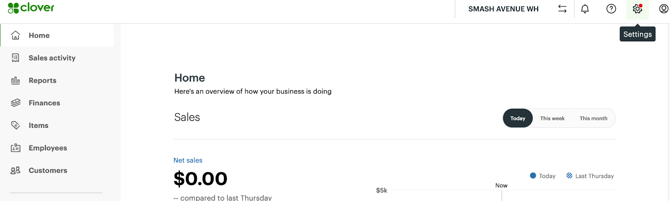
1. Click on “Settings” Icon in the top right corner
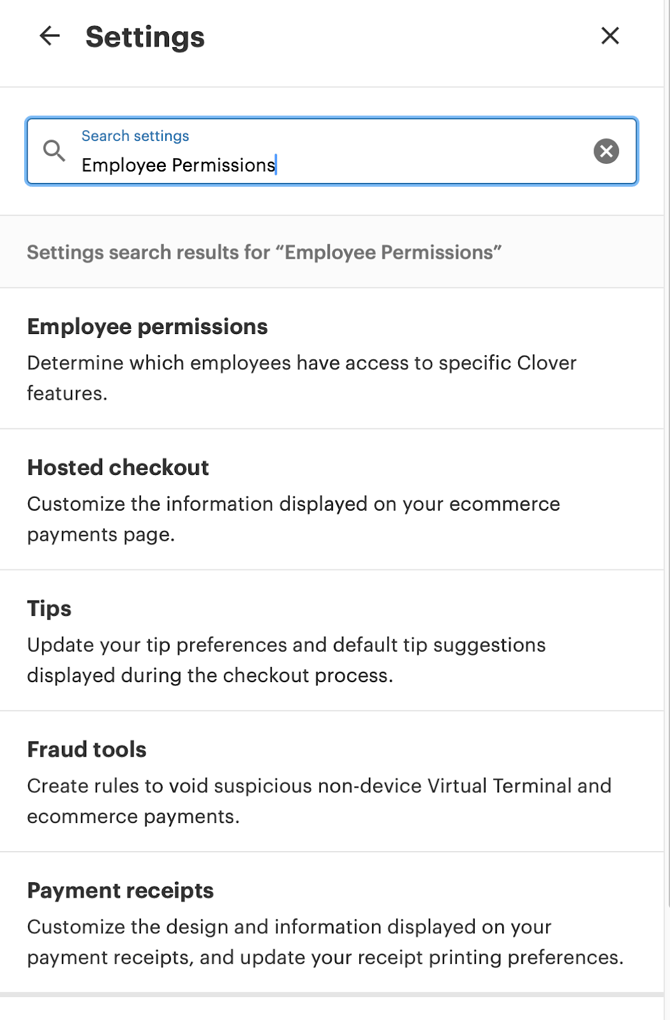
3. You will be directed to the page below. Scroll down to find “Access Refund”
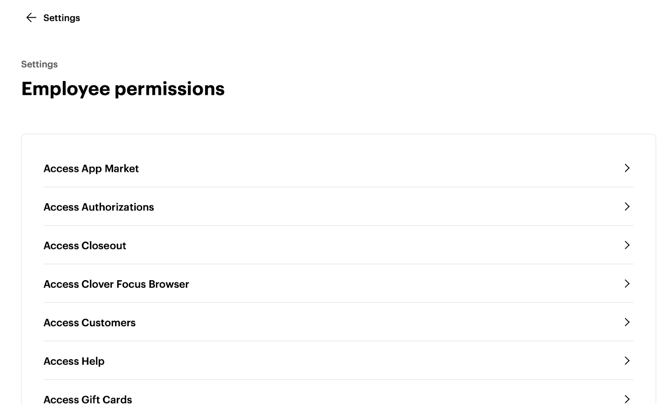
4. From here, you will see two options:
- Access Refund: Referring to refunds made by a specific card with the Clover Device.
- Access Manual Transaction: Referring to refunds that can be made by manually entering card information.

NOTE: Our recommendation is that the “Access Refund” option is made accessible to Employees, Manager and Admin, while the “Access Manual Transaction” option is only made accessible to Managers or Admin in order to promote fraud prevention. 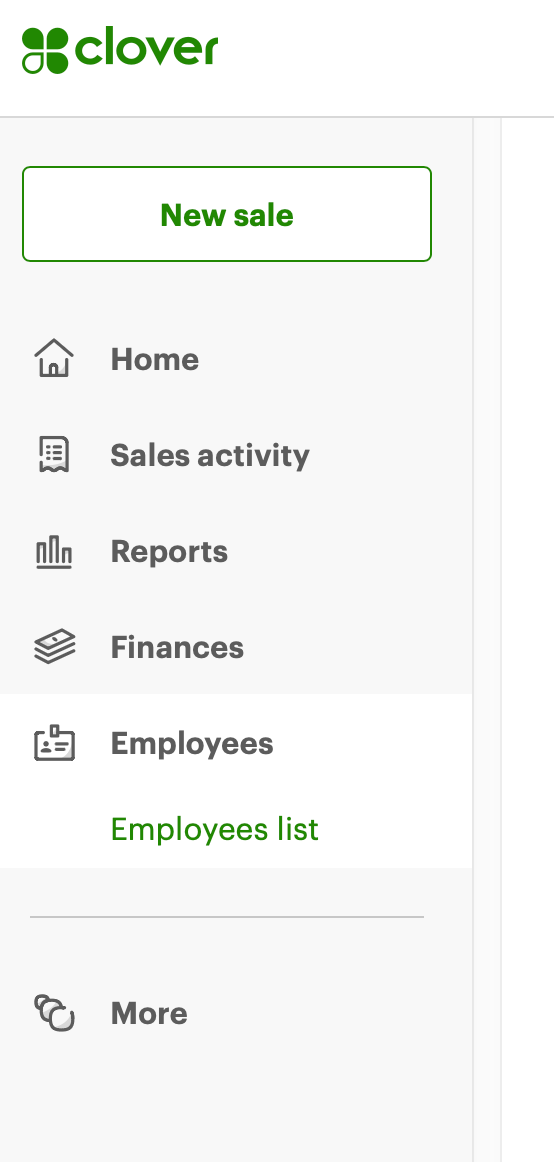
By navigating to the “Employees” tab on the left, Admin can view employee usage in order to monitor transactions. We recommend that each individual employee utilize their own log in on the Clover device in order to ensure security and to limit access based on roles.
Clover Manual Refund Guide (via Physical Device)
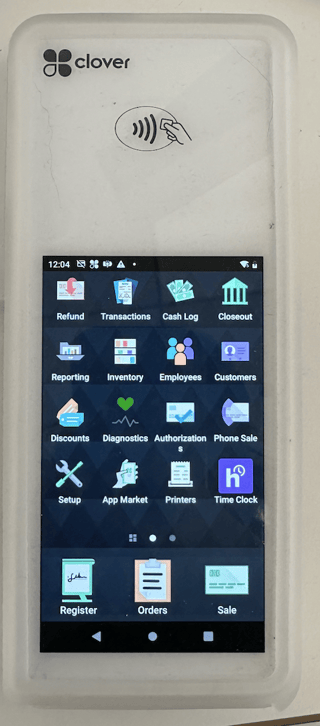
1. Open the “Employees” app on the Clover Device.
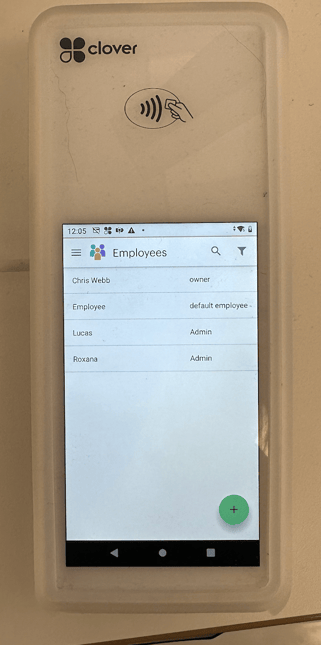
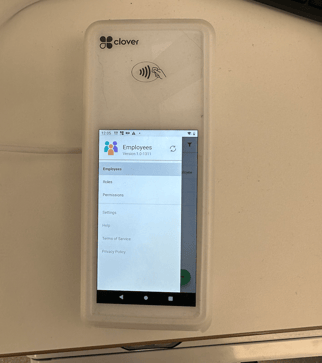
2. Click the top left corner menu.
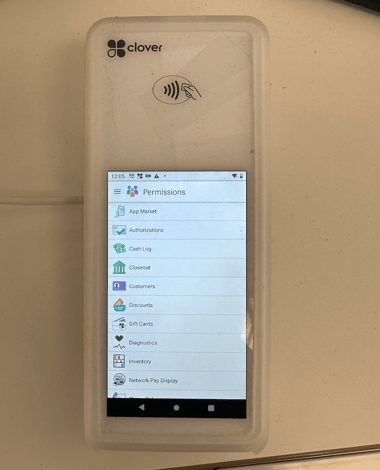
3. Navigate to the “Permissions” tab. Here, you can change various permissions for Managers, Admin, and Employees.
4. Navigate to the “Refund Permissions” tab.
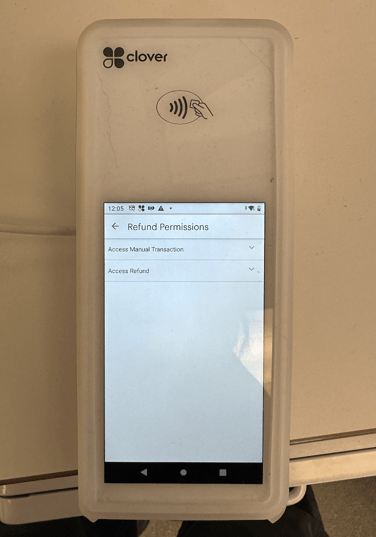
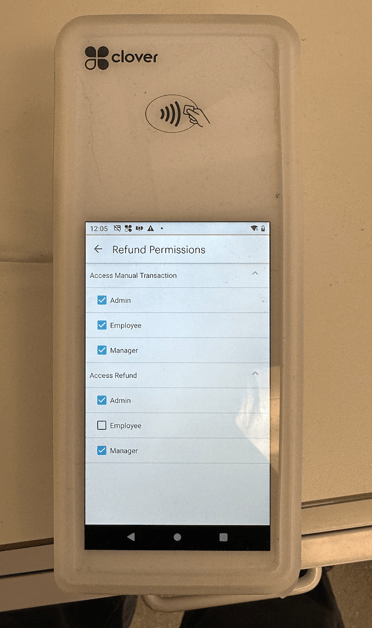
5. From here, you will see two options:
- Access Refund: Referring to refunds made by a specific card with the Clover Device.
- Access Manual Transaction: Referring to refunds that can be made by manually entering card information.
NOTE: Our recommendation is that the “Access Refund” option is made accessible to Employees, Manager and Admin, while the “Access Manual Transaction” option is only made accessible to Managers or Admin in order to promote fraud prevention. We recommend that each individual employee utilize their own log in on the Clover device in order to ensure security and to limit access based on roles.