Here’s how you can manually create a booking in Resova:
-
Log in to your Resova account.
-
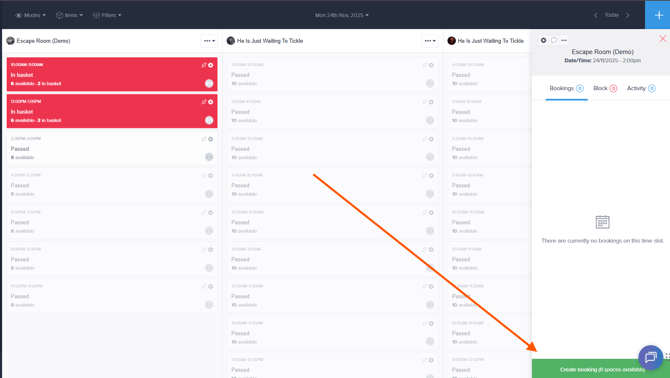
Go to the Calendar and select the time slot for the item you want to book.
-
A panel will open on the right side, click the green “Create Booking” button.
-
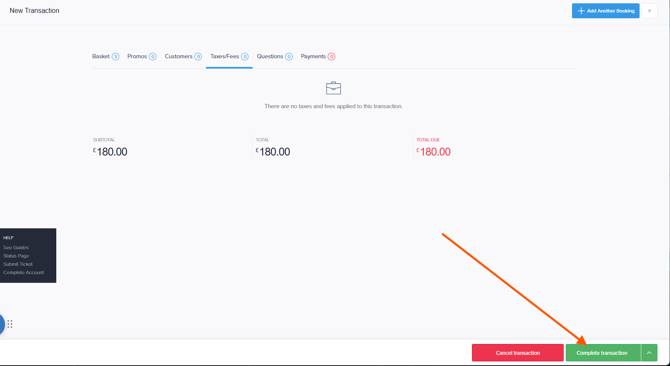
You’ll then see several sections you can adjust before completing the booking:
Basket
Contains all items currently added to the booking.
Promos
Apply an existing promo or add a new discount code.
Customers
Add the main customer information and update the number of participants.
Taxes/Fees
Review and adjust any taxes or additional fees applied to the booking.
Questions
View or edit any questions or custom fields attached to the activity.
Payments
Take payment, mark as paid later, or override payment details if necessary.
-
Once you’ve filled in all the required details, click “Complete Transaction” to finalize the booking, and you're all set!